Thursday, February 13, 2020

The basics of Excel formulas


https://www.ablebits.com/office-addins-blog/2017/06/14/basic-excel-formulas-functions-examples/


Before providing the basic Excel formulas list, let's define the key terms just to make sure we are on the same page. So, what do we call an Excel formula and Excel function?
  • Formula is an expression that calculates values in a cell or in a range of cells.
    For example, =A2+A2+A3+A4 is a formula that adds up the values in cells A2 through A4.
  • Function is a predefined formula already available in Excel. Functions perform specific calculations in a particular order based on the specified values, called arguments, or parameters.
For example, instead of specifying each value to be summed like in the above formula, you can use the SUM function to add up a range of cells: =SUM(A2:A4)
You can find all available Excel functions in the Function Library on the Formulas tab:
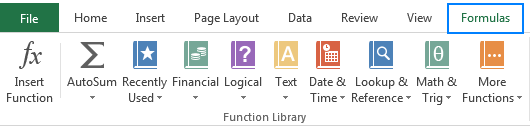
Basic Excel functions
There exist 400+ functions in Excel, and the number is growing by version to version.  Of course, it's next to impossible to memorize all of them, and you actually don't need to. The Function Wizard will help you find the function best suited for a particular task, while the Excel Formula Intellisense will prompt the function's syntax and arguments as soon as you type the function's name preceded by an equal sign in a cell:
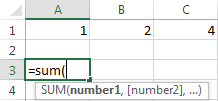
Excel Formula Intellisense
Clicking the function's name will turn it into a blue hyperlink, which will open the Help topic for that function.
Tip. You don't necessarily have to type a function name in all caps, Microsoft Excel will automatically capitalize it once you finish typing the formula and press the Enter key to complete it.

10 Excel basic functions you should definitely know

What follows below is a list of 10 simple yet really helpful functions that are a necessary skill for everyone who wishes to turn from an Excel novice to an Excel professional.

SUM

The first Excel function you should be familiar with is the one that performs the basic arithmetic operation of addition:
SUM(number1, [number2], …)
In the syntax of all Excel functions, an argument enclosed in [square brackets] is optional, other arguments are required. Meaning, your Sum formula should include at least 1 number, reference to a cell or a range of cells. For example:
=SUM(B2:B6) - adds up values in cells B2 through B6.
=SUM(B2, B6) - adds up values in cells B2 and B6.
If necessary, you can perform other calculations within a single formula, for example, add up values in cells B2 through B6, and then divide the sum by 5:
=SUM(B2:B6)/5
To sum with conditions, use the SUMIF function: in the 1st argument, you enter the range of cells to be tested against the criteria (A2:A6), in the 2nd argument - the criteria itself (D2), and in the last argument - the cells to sum (B2:B6):
=SUMIF(A2:A6, D2, B2:B6)
In your Excel worksheets, the formulas may look something similar to this:
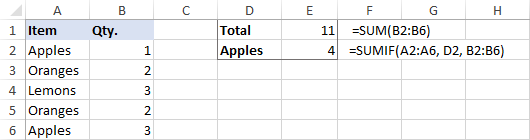
Using SUM formulas in Excel
Tip. The fastest way to sum a column or row of numbers is to select a cell next to the numbers you want to sum (the cell immediately below the last value in the column or to the right of the last number in the row), and click the AutoSum button on the Home tab, in the Formats group. Excel will insert a SUM formula for you automatically.

Useful resources:

AVERAGE

The Excel AVERAGE function does exactly what its name suggests, i.e. finds an average, or arithmetic mean, of numbers. Its syntax is similar to SUM's:
AVERAGE(number1, [number2], …)
Having a closer look at the formula from the previous section (=SUM(B2:B6)/5), what does it actually do? Sums values in cells B2 through B6, and then divides the result by 5. And what do you call adding up a group of numbers and then dividing the sum by the count of those numbers? Yep, an average!
The Excel AVERAGE function performs these calculations behind the scenes. So, instead of dividing sum by count, you can simply put this formula in a cell:
=AVERAGE(B2:B6)
To average cells based on condition, use the following AVERAGEIF formula, where A2:A6 is the criteria range, D3 is he criteria, and B2:B6 are the cells to average:
=AVERAGEIF(A2:A6, D3, B2:B6)
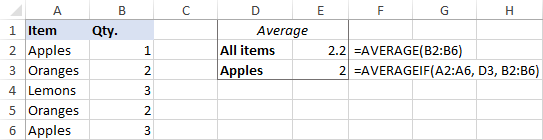
Using an Average formula in Excel

Useful resources:

MAX & MIN

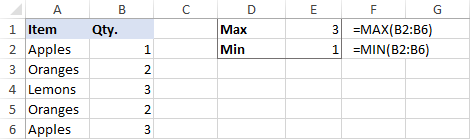
The MAX and MIN formulas in Excel get the largest and smallest value in a set of numbers, respectively. For our sample data set, the formulas will be as simple as:
=MAX(B2:B6)
=MIN(B2:B6)
Using MIN and MAX formulas in Excel

COUNT & COUNTA

If you are curious to know how many cells in a given range contain numeric values (numbers or dates), don't waste your time counting them by hand. The Excel COUNT function will bring you the count in a heartbeat:
COUNT(value1, [value2], …)
While the COUNT function deals only with those cells that contain numbers, the COUNTA function counts all cells that are not blank, whether they contain numbers, dates, times, text, logical values of TRUE and FALSE, errors or empty text strings (""):
COUNTA (value1, [value2], …)
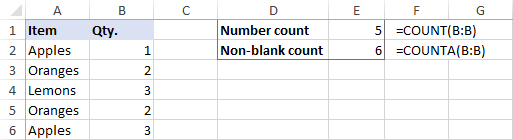
For example, to find out how many cells in column B contain numbers, use this formula:
=COUNT(B:B)
To count all non-empty cells in column B, go with this one:
=COUNTA(B:B)
In both formulas, you use the so-called "whole column reference" (B:B) that refers to all the cells within column B.
The following screenshot shows the difference: while COUNT processes only numbers, COUNTA outputs the total number of non-blank cells in column B, including the the text value in the column header.
COUNT and COUNTA formulas in Excel

Useful resources:

IF

Judging by the number of IF-related comments on our blog, it's the most popular function in Excel. In simple terms, you use an IF formula to ask Excel to test a certain condition and return one value or perform one calculation if the condition is met, and another value or calculation if the condition is not met:
IF(logical_test, [value_if_true], [value_if_false])
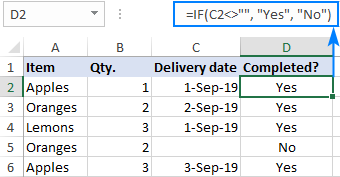
For example, the following IF statement checks if the order is completed (i.e. there is a value in column C) or not. To test if a cell is not blank, you use the "not equal to" operator (<>) in combination with an empty string (""). As the result, if cell C2 is not empty, the formula returns "Yes", otherwise "No":
=IF(C2<>"", "Yes", "No")
Using an IF formula in Excel

Useful resources:

TRIM

If your obviously correct Excel formulas return just a bunch of errors, one of the first things to check is extra spaces in the referenced cells (You may be surprised to know how many leading, trailing and in-between spaces lurk unnoticed in your sheets just until something goes wrong!).
There are several ways to remove unwanted spaces in Excel, with the TRIM function being the easiest one:
TRIM(text)
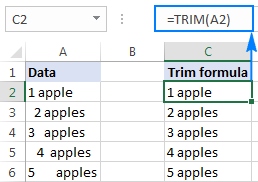
For example, to trim extra spaces in column A, enter the following formula in cell A1, and then copy it down the column:
=TRIM(A1)
It will eliminate all extra spaces in cells but a single space character between words:
Excel TRIM formula

Useful resources:

LEN

Whenever you want to know the number of characters in a certain cell, LEN is the function to use:
LEN(text)
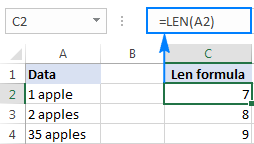
Wish to find out how many characters are in cell A2? Just type the below formula into another cell:
=LEN(A2)
Please keep in mind that the Excel LEN function counts absolutely all characters including spaces:
Using a LEN formula in Excel
Want to get the total count of characters in a range or cells or count only specific characters? Please check out the following resources.

Useful resources:

AND & OR

These are the two most popular logical functions to check multiple criteria. The difference is how they do this:
  • AND returns TRUE if all conditions are met, FALSE otherwise.
  • OR returns TRUE if any condition is met, FALSE otherwise.
While rarely used on their own, these functions come in very handy as part of bigger formulas.
For example, to check the test results in columns B and C and return "Pass" if both are greater than 60, "Fail" otherwise, use the following IF formula with an embedded AND statement:
=IF(AND(B2>60, B2>60), "Pass", "Fail")
If it's sufficient to have just one test score greater than 60 (either test 1 or test 2), embed the OR statement:
=IF(OR(B2>60, B2>60), "Pass", "Fail")
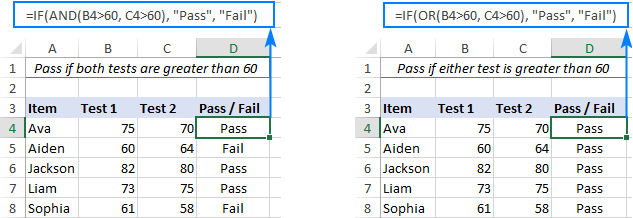
IF formulas with embedded AND/OR statements

Useful resources:

CONCATENATE

In case you want to take values from two or more cells and combine them into one cell, use the concatenate operator (&) or the CONCATENATE function:
CONCATENATE(text1, [text2], …)
For example, to combine the values from cells A2 and B2, just enter the following formula in a different cell:
=CONCATENATE(A2, B2)
To separate the combined values with a space, type the space character (" ") in the arguments list:
=CONCATENATE(A2, " ", B2)
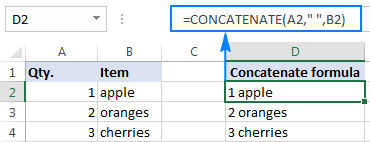
Using a CONCATENATE formula in Excel

Useful resources:

TODAY & NOW

To see the current date and time whenever you open your worksheet without having to manually update it on a daily basis, use either:
=TODAY() to insert the today's date in a cell.
=NOW() to insert the current date and time in a cell.
The beauty of these functions is that they don't require any arguments at all, you type the formulas exactly as written above.

Using the TODAY and NOW functions in Excel

Useful resources:

Excel formulas tips and how-to's

Now that you are familiar with the basic Excel formulas, these tips will give you some guidance on how to use them most effectively and avoid common formula errors.

Copy the same formula to other cells instead of re-typing it

Once you have typed a formula into a cell, there is no need to re-type it over and over again. Simply copy the formula to adjacent cells by dragging the fill handle (a small square at the lower right-hand corner of the cell). To copy the formula to the whole column, position the mouse pointer to the fill handle and double-click the plus sign.
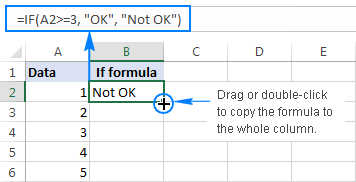
Copying the formula to adjacent cells
Note. After copying the formula, make sure that all cell references are correct. Cell references may change depending on whether they are absolute (do not change) or relative (change).
For the detailed step-by-step instructions, please see How to copy formulas in Excel.

How to delete formula, but keep calculated value

When you remove a formula by pressing the Delete key, a calculated value is also deleted. However, you can delete only the formula and keep the resulting value in the cell. Here's how:
  • Select all cells with your formulas.
  • Press Ctrl + C to copy the selected cells.
  • Right-click the selection, and then click Paste Values > Values to paste the calculated values back to the selected cells. Or, press the Paste Special shortcut: Shift+F10 and then V.
For the detailed steps with screenshots, please see How to replace formulas with their values in Excel.

Do not enclose numbers in double quotes

Any text included in your Excel formulas should be enclosed in "quotation marks". However, you should never do that to numbers, unless you want Excel to treat them as text values.
For example, to check the value in cell B2 and return 1 for "Passed", 0 otherwise, you put the following formula, say, in C2:
=IF(B2="pass", 1, 0)
Copy the formula down to other cells and you will have a column of 1's and 0's that can be calculated without a hitch.
Now, see what happens if you double quote the numbers:
=IF(B2="pass", "1", "0")
At first sight, the output is normal - the same column of 1's and 0's. Upon a closer look, however, you will notice that the resulting values are left-aligned in cells by default, meaning those are numeric strings, not numbers! If later on someone will try to calculate those 1's and 0's, they might end up pulling their hair out trying to figure out why a 100% correct Sum or Count formula returns nothing but zero.
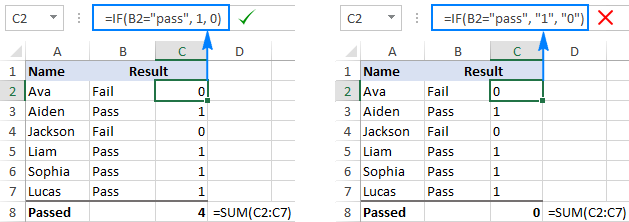
Enclose text values in double quotes, but not numbers

Don't format numbers in Excel formulas

Please remember this simple rule: numbers supplied to your Excel formulas should be entered without any formatting like decimal separator or dollar sign. In North America and some other countries, comma is the default argument separator, and the dollar sign ($) is used to make absolute cell references. Using those characters in numbers may just drive your Excel crazy :) So, instead of typing $2,000, simply type 2000, and then format the output value to your liking by setting up a custom Excel number format.

Match all opening and closing parentheses in your formulas

When crating a complex Excel formula with one or more nested functions, you will have to use more than one set of parentheses to define the order of calculations. In such formulas, be sure to pair the parentheses properly so that there is a closing parenthesis for every opening parenthesis. To make the job easier for you, Excel shades parenthesis pairs in different colors when you enter or edit a formula.

Make sure Calculation Options are set to Automatic

If all of a sudden your Excel formulas have stopped recalculating automatically, most likely the Calculation Options somehow switched to Manual. To fix this, go to the Formulas tab > Calculation group, click the Calculation Options button, and select Automatic.
If this does not help, check out these troubleshooting steps: Excel formulas not working: fixes & solutions.
This is how you make and manage basic formulas in Excel. I how you will find this information helpful. Anyway, I thank you for reading and hope to see you on our blog next week.

You may also be interested in:

500 Excel Formula Examples


https://exceljet.net/formulas


Detailed formula examples for key functions, including VLOOKUP, INDEX, MATCH, RANK, SUMPRODUCT, AVERAGE, SMALL, LARGE, LOOKUP, ROUND, COUNTIFS, SUMIFS, CHOOSE, FIND, SEARCH, DATE, and many more.


23 things you should know about VLOOKUP


https://exceljet.net/things-you-should-know-about-vlookup


When you want to pull information from a table, the Excel VLOOKUP function is a great solution. The ability to dynamically lookup and retrieve information from a table is a game-changer for many users, and you'll find VLOOKUP everywhere.
And yet, although VLOOKUP is a relatively easy to use, there is plenty that can go wrong. One reason is that VLOOKUP has a major design flaw — by default, it assumes you're OK with an approximate match. Which you probably aren't.
This can cause results that look completely normal, even though they are totally incorrect. Trust me, this is NOT something you want to try to explain to your boss, after she's already sent your spreadsheet to management :)
Read below learn how to manage this challenge, and discover other tips for mastering the Excel VLOOKUP function.

1. How VLOOKUP works

VLOOKUP is a function to lookup up and retrieve data in a table. The "V" in VLOOKUP stands for vertical, which means the data in the table must be arranged vertically, with data in rows. (For horizontally structured data, see HLOOKUP).
If you have a well structured table, with information arranged vertically, and a column on the left which you can use to match a row, you can probably use VLOOKUP.
VLOOKUP requires that the table be structured so that lookup values appear in the left-most column. The data you want to retrieve (result values) can appear in any column to the right. When you use VLOOKUP, imagine that every column in the table is numbered, starting from the left. To get a value from a particular column, simply supply the appropriate number as the "column index". In the example below, we want to look up the email address, so we are using the number 4 for column index:
Overview of how VLOOKUP works
In the above table, the employee IDs are in column 1 on the left and the email addresses are in column 4 to the right.
To use VLOOKUP, you supply 4 pieces of information, or "arguments":
  1. The value you are looking for (lookup_value)
  2. The range of cells that make up the table (table_array)
  3. The number of the column from which to retrieve a result (column_index)
  4. The match mode (range_lookup, TRUE = approximate, FALSE = exact)
Video: How to use VLOOKUP (3 min)
If you still don't get the basic idea of VLOOKUP, Jon Acampora, over at Excel Campus, has a great explanation based on the Starbucks coffee menu.

2. VLOOKUP only looks right

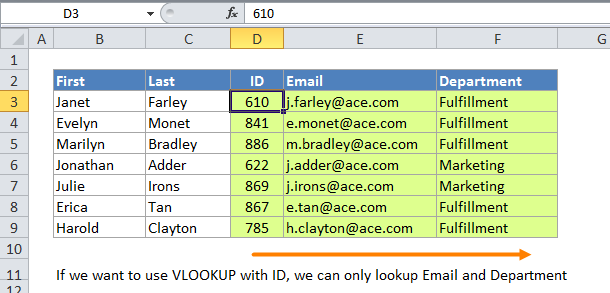
Perhaps the biggest limitation of VLOOKUP is that it can only look to the right to retrieve data.
This means that VLOOKUP can only get data from columns to the right of first column in the table.  When lookup values appear in the first (leftmost) column, this limitation doesn't mean much, since all other columns are already to the right. However, if the lookup column appears inside the table somewhere, you'll only be able to lookup values from columns to the right of that column. You'll also have to supply a smaller table to VLOOKUP that starts with the lookup column.
VLOOKUP can only look to the right of the lookup value column
You can overcome this limitation by using INDEX and MATCH instead of VLOOKUP.

3. VLOOKUP finds the first match

In exact match mode, if a lookup column contains duplicate values, VLOOKUP will match the first value only. In the example below, we are using VLOOKUP to find a first name, and VLOOKUP is set to perform exact match. Although there are two "Janet"s in the list, VLOOKUP matches only the first:
VLOOKUP always finds the first match
Note: behavior can change when VLOOKUP is used in approximate match mode. This article explains the topic in detail.

4. VLOOKUP is not case-sensitive

When looking up a value, VLOOKUP does not process upper and lower case text differently. To VLOOKUP, a product code like "PQRF" is identical to "pqrf". In the example below, we are looking for uppercase "JANET" but VLOOKUP does not distinguish case so it simply matches "Janet", since that's the first match it finds:
VLOOKUP is NOT case-sensitive
We also offer paid training for VLOOKUP and INDEX/MATCH

5. VLOOKUP has two matching modes

VLOOKUP has two modes of operation: exact match and approximate match. In most cases, you'll probably want to use VLOOKUP in exact match mode. This makes sense when you want to lookup information based on a unique key of some kind, for example, product information based on a product code, or movie data based on a movie title:
VLOOKUP exact match example - matching movies
The formula in H6 to lookup year based on an exact match of movie title is:
=VLOOKUP(H4,B5:E9,2,FALSE) // FALSE = exact match
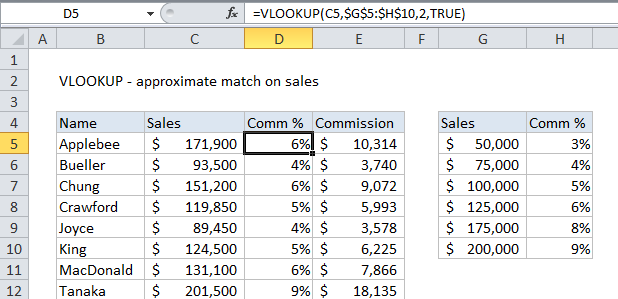
However, you'll want to use approximate mode in cases where you're not matching on a unique id, but rather you're looking up the "best match" or the "best category". For example, perhaps you're looking up postage based on weight, looking up tax rate based on income, or looking up a commission rate based on a monthly sales number. In these cases, you likely won't find the exact lookup value in the table. Instead, you want VLOOKUP to get you the best match for a given lookup value.
VLOOKUP approximate match example - commissions
The formula in D5 does an approximate match to retrieve the correct commission:
=VLOOKUP(C5,$G$5:$H$10,2,TRUE) // TRUE = approximate match

6. Caution: VLOOKUP uses approximate match by default

Exact and approximate matching in VLOOKUP is controlled by the 4th argument, called "range lookup". This name is not intuitive, so you'll just have to memorize how it works.
For exact match, use FALSE or 0. For approximate match, set range_lookup to TRUE or 1:
=VLOOKUP(value,table,column,TRUE) // approximate match
=VLOOKUP(value,table,column,FALSE)  // exact match
Unfortunately, the 4th argument, range_lookup, is optional and defaults to TRUE, which means VLOOKUP will do an approximate match by default. When doing an approximate match, VLOOKUP assumes the table is sorted and performs a binary search. During a binary search, if VLOOKUP finds an exact match value, it returns a value from that row. If however, VLOOKUP encounters a value greater than the lookup value, it will return a value from the previous row. 
This is a dangerous default because many people unwittingly leave VLOOKUP in it's default mode, which can cause an incorrect result when the table is not sorted.
To avoid this problem, make sure to use FALSE or zero as the 4th argument when you want an exact match.

7. You can force VLOOKUP to do an exact match

To force VLOOKUP to find an exact match, make sure to set the 4 argument (range_lookup) to FALSE or zero. These two formulas are equivalent:
=VLOOKUP(value, data, column, FALSE)
=VLOOKUP(value, data, column, 0)
In exact match mode, when VLOOKUP can't find a value, it will return #N/A. This a clear indication that the value isn't found in the table.

8. You can tell VLOOKUP to do an approximate match

To use VLOOKUP in approximate match mode, either omit the 4th argument (range_lookup) or supply it as TRUE or 1. These 3 formulas are equivalent:
=VLOOKUP(value, data, column)
=VLOOKUP(value, data, column, 1)
=VLOOKUP(value, data, column, TRUE)
We recommend that you always set range_lookup argument explicitly, even though VLOOKUP doesn't require it. That way, you always have a visual reminder of the match mode you expect.

9. For approximate matches, data must be sorted

If you are using approximate-mode matching, your data must be sorted in ascending order by lookup value. Otherwise, you may get an incorrect results. Also be aware that sometimes text data may look sorted, even though it's not.
Felienne Hermans has a great example of this problem here, from a cool analysis she did on actual Enron spreadsheets!

10. VLOOKUP can merge data in different tables

A common use case for VLOOKUP is to join data from two or more tables. For example, perhaps you have order data in one table, and customer data in another and you want to bring some customer data into the order table for analysis:
VLOOKUP merge data by joining tables -before
Because the customer id exists in both tables, you can use this value to pull in the data you want with VLOOKUP. Just configure VLOOKUP to use the id value in table one, and the data in table 2, with the required column index. In the example below, we are using two VLOOKUP formulas. One to pull in the customer name, and the other to pull in the customer state.
VLOOKUP merge data by joining tables -after

11. VLOOKUP can classify or categorize data

If you ever need to apply arbitrary categories to data records, you can easily do so with VLOOKUP, by using a table that acts as the "key" to assign categories.
A classic example is grades, where you need to assign a grade based on a score:
VLOOKUP used to categorize - assigning grades
In this case, VLOOKUP is configured for approximate match, so it's important that the table be sorted in ascending order.
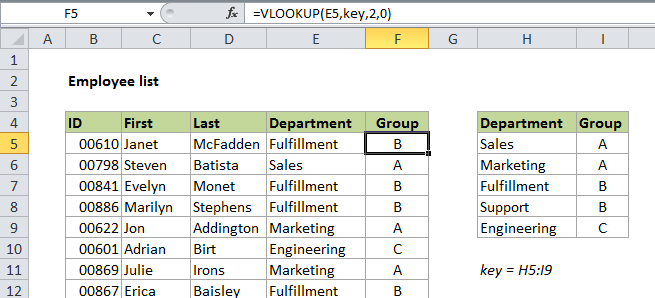
But you can also use VLOOKUP to assign arbitrary categories. In the example below, we are using VLOOKUP to to calculate a group for each department using a small table (named "key") that defines the grouping.
VLOOKUP used to categorize - assigning arbitrary groups

12. Absolute references make VLOOKUP more portable

In situations where you plan to retrieve information from more than one column in a table, or if you need to copy and paste VLOOKUP, you can save time and aggravation by using absolute references for the lookup value and table array. This lets you copy the formula, and then change only the column index number to use the same lookup to get a value from a different column.
For example, because the lookup value and table array are absolute, we can copy the formula across the columns, then come back and change the column index as needed.
Absolute references make VLOOKUP formulas more portable

13. Named ranges make VLOOKUP easier to read (and more portable)

Absolute ranges are pretty ugly looking, so can make your VLOOKUP formulas a lot cleaner and easier to read by replacing absolute references with named ranges, which are automatically absolute.
For example, in the employee data example above, you can name the input cell "id" and then name the data in the table "data", you can write your formula as follows:
Named ranges make VLOOKUP formulas easier to read
Not only is this formula easier to read, but it's also more portable, since named ranges are automatically absolute.

14. Inserting a column may break existing VLOOKUP formulas

If you have existing VLOOKUP formulas in a worksheet, formulas may break if you insert a column in the table. This is because hard-coded column index values don't change automatically when columns are inserted or deleted.
In this example, the lookups for Rank and Sales were broken when a new column was inserted between Year and Rank. Year continues to work because it is on the left of the inserted column:
Inserting a column in the table may break VLOOKUP
To avoid this problem, you can calculate a column index as described in the next two tips.

15. You can use ROW or COLUMN to calculate a column index

If you're the type who is bothered by any amount of editing after copying a formula, you can use either ROW or COLUMN to generate dynamic column indexes. If you're getting data from consecutive columns, this trick lets you set up one VLOOKUP formula, then copy it across with no changes required.
For example, with the employee data below, we can use the COLUMN function to generate a dynamic column index. For the first formula in cell C3, COLUMN by itself will return 3 (because column C is third in the worksheet) so we simply need to subtract one, and copy the formula across: 
Example of using COLUMN to calculate the column index for VLOOKUP
All formulas are identical with no post-editing required.
The formula we are using is this:
=VLOOKUP(id,data,COLUMN()-1,0)

16. Use VLOOKUP + MATCH for a fully dynamic column index

Taking the above tip one step further, you can use MATCH to look up the position of a column in a table and return a fully dynamic column index.
This is sometimes called a two-way lookup since you are looking up both the row and the column.
An example would be looking up sales for a salesperson in a particular month, or looking up the price for a particular product from a particular supplier.
For example, suppose you have sales per month, broken out by salesperson:
VLOOKUP two way lookup - how to lookup the month?
VLOOKUP can easily find the sales person, but it has no way to handle the month name automatically. The trick is to to use the MATCH function in place of a static column index.
VLOOKUP two way lookup using MATCH to get the column index
Notice that we give match a range that includes all columns in the table in order to "sync up" the the column numbers used by VLOOKUP.
=VLOOKUP(H2,data,MATCH(H3,months,0),0)
Note: you'll often see two way lookups done with INDEX and MATCH, an approach that offers more flexibility and better performance on big data sets. See how in this quick video: How to do a two-way lookup with INDEX and MATCH.

17. VLOOKUP allows wildcards for partial matching

Any time you're using VLOOKUP in exact match mode, you have the option of using wildcards in the lookup value. It may seem counterintuitive, but wildcards let you do an exact match based on a partial match :)
Excel provides two wildcard characters: an asterisk (*) matches one or more characters, and a question mark (?) matches one character.
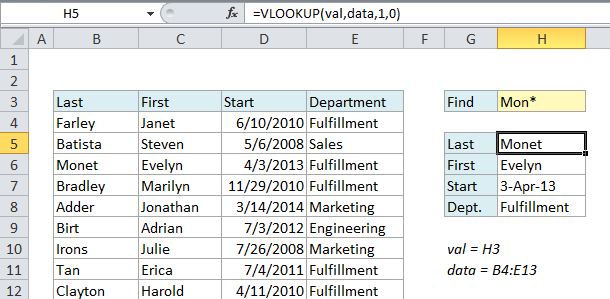
For example, you can type an asterisk directly into a cell and refer to it as a lookup value with VLOOKUP. In the screen below, we have entered "Mon*" into H3, which is a named range called "val". This causes VLOOKUP to match the name "Monet".
VLOOKUP with wildcards - using an asterisk directly
The formula in this case is simple:
=VLOOKUP(val,data,1,0)
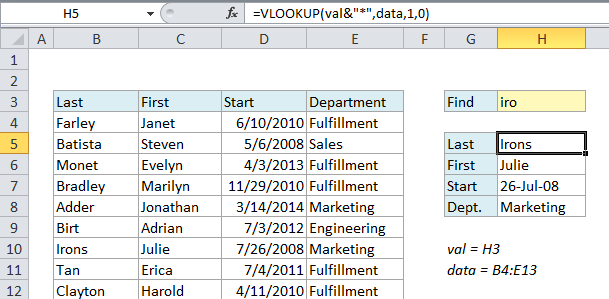
If you like, you can adjust the VLOOKUP formula to use a built-in wildcard, like the example below, where we simply concatenate the value in H3 with an asterisk.
VLOOKUP with wildcards - asterisk is concatenated to the lookup value
In this case, we are concatenating the asterisk to the lookup value inside the VLOOKUP function:
=VLOOKUP(val&"*",data,1,0)
Note: Be careful with wildcards and VLOOKUP. They give you an easy way to create a "lazy match", but they also make it easy to find the wrong match.

18. You can trap #N/A errors and display a friendly message

In exact match mode, VLOOKUP will display the #N/A error when no match is found. In one way, this is useful because it tell you definitively that there is no match in the lookup table. However, #N/A errors aren't very fun to look at, so there are several ways you can trap this error and display something else instead.
Once you start using VLOOKUP, you're bound to run into the #N/A error, which occurs when VLOOKUP isn't able to find a match.
This is a useful error, because VLOOKUP is telling you clearly that it can't find the lookup value. In this example, "Latte" doesn't exist as a beverage in the table, so VLOOKUP throws an #N/A error
VLOOKUP sporting an #N/A error
The formula in this case is a completely standard exact match:
=VLOOKUP(E6,data,2,0)
However, #N/A errors aren't very fun to look at, so you might want to catch this error and display a more friendly message.
The easiest way to trap errors with VLOOKUP is to wrap VLOOKUP in the IFERROR function. IFERROR allows you to "catch" any error and return a result of your choosing. 
To trap this error and display a "not found" message instead of the error, you can simply wrap the orignal formula inside of IFERROR and set the result you want:
VLOOKUP #N/A error trapped with IFERROR
If the lookup value is found, no error occurs and VLOOKUP function returns a normal result. Here is the formula:
=IFERROR(VLOOKUP(E6,data,2,0),"Not found")

19. Numbers as text can cause a match error

Sometimes, the table you are working with in VLOOKUP might contain numbers entered as text. If you are simply retrieving numbers as text from a column in a table, it doesn't matter. But if the first column of the table contains numbers entered as text, you will get an #N/A error if the lookup value is not also text.
In the following example, the ids for the planet table are numbers entered as text, which causes VLOOKUP to return an error since the lookup value is the number 3:
Numbers entered as text VLOOKUP error example
To solve this problem, you need to make sure the lookup value and the first column of the table are both the same data type (either both numbers or both text).
One way to do this is to convert the values in the lookup column to numbers. An easy way to do this is to add zero using paste special.
If you don't have easy control over the source table, you can also adjust the VLOOKUP formula to convert the lookup value to text by concatenating "" to the value like so:
=VLOOKUP(id&"",planets,2,0)
Numbers entered as text VLOOKUP error solution
If you can't be certain when you'll have numbers and when you'll have text, you can cater to both options by wrapping VLOOKUP in IFERROR and writing a formula to handle both cases:
=IFERROR(VLOOKUP(id,planets,3,0),VLOOKUP(id&"",planets,3,0))

20. You can use VLOOKUP to replace nested IF statements

One of the more interesting uses of VLOOKUP is to replace nested IF statements. If you've ever built a series of nested IFs, you know that they work fine, but they require a bit of parentheses wrangling. You also have to be careful about the order you work in, so as not to introduce a logical error.
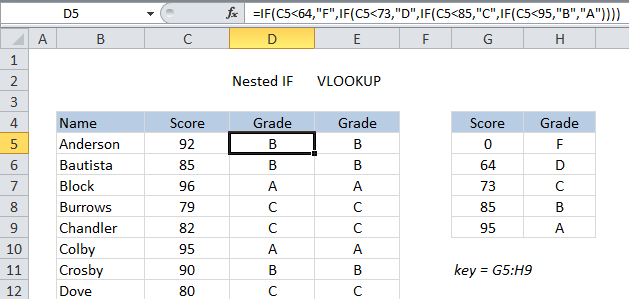
For example, a common use of nested IFs is to assign grades based on a score of some kind. In the example below, you can see a formula has been build with nested IFs to do just that, using the grade key at the right as the guide.
Assigning grades with a long nested IF formula
The full nested IF formula looks like this:
=IF(C5<64,"F",IF(C5<73,"D",IF(C5<85,"C",IF(C5<95,"B","A"))))
This works fine, but note that both the logic and the actual scores are baked right into the formula. If the scoring changes for any reason, you'll need to carefully update one formula then copy it down the entire table.
By contrast VLOOKUP can assign the same grades with a simple formula. All you need to do is make sure the grade key table is set up for VLOOKUP (i.e. it most be sorted by score, and contain brackets to handle all scores).
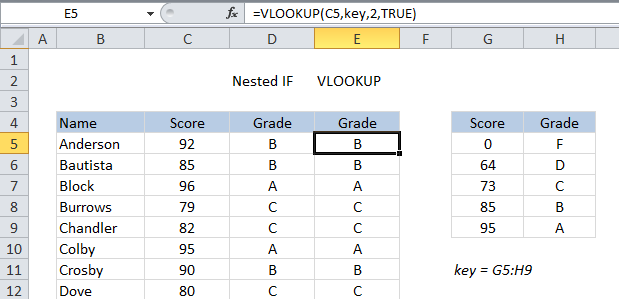
After defining a named range "key" for the grade key table, the VLOOKUP formula is very simple and generated the same grades as the original nested IFs formula:
Assigning grades with a simple VLOOKUP formula
With the grade key table named "key" we have a very simple VLOOKUP formula:
=VLOOKUP(C5,key,2,TRUE)
A nice bonus of this approach is that both the logic and the scores are built right into the grade key table. If anything changes, you can simply update the table directly and the VLOOKUP formulas will update automatically - no editing required.

21. VLOOKUP can only handle a single criteria

By design, VLOOKUP can only find values based on a single criteria, which is supplied as a lookup value to find in the first column of the table (the lookup column).
This means you can't easily do things like look up an employee with the last name of "Smith" in  "Accounting", or look up an employee based on first and last names in separate columns.
However, there are ways overcome this limitation. One workaround is to create a helper column that concatenates values from different columns to create lookup values that behave like multiple conditions. For example, here we want find the department and group for an employee, but the first name and last name appear in separate columns. How can we lookup both at once?
VLOOKUP multiple criteria problem - how to lookup on both first and last name?
First, add a helper column that simply concatenates first and last names together:
VLOOKUP multiple criteria step 2 - add a helper column that joins multiple criteria
Then configure VLOOKUP to use a table that includes this new column, and join first and last names for the lookup value:
VLOOKUP multiple criteria step 3 - join criteria to form lookup value
The final VLOOKUP formula looks up first and last names together using the helper column as the key:
=VLOOKUP(C3&D3,data,4,0)

22. Two VLOOKUPS are faster than one VLOOKUP

It may seem completely crazy, but when you have a big set of data and need to do an exact match, you can speed up VLOOKUP a lot by adding another VLOOKUP to the formula!
The background: imagine that you have a lot of order data, say, more than 10,000 records and you are using VLOOKUP to lookup the order total based on the order id. So, you are using something like this:
=VLOOKUP(order_id,order_data, 5, FALSE)
The FALSE at the end forces VLOOKUP to do an exact match. You want an exact match because there's a chance that an order number won't be found. In this case, the exact match setting will cause VLOOKUP to return #N/A error.
The problem is that exact matches are really slow, because Excel must proceed in a linear fashion through all values until it finds a match or not.
Conversely, approximate matches are lightning fast because Excel is able to do what's called a binary search.
The problem with binary searches however (i.e. VLOOKUP in approximate match mode) is that VLOOKUP can return the wrong result when a value isn't found. Worse, the result might look completely normal, so it can be very difficult to spot.
The solution is to use VLOOKUP twice, both times in approximate match mode. The first instance simply checks that the value really exists. If so, another VLOOKUP is run (again, in approximate match mode) to fetch the data you want. If not, you can return any value you want to indicate that a result was not found.
The final formula looks like this:
=IF(VLOOKUP(order_id,order_data,1,TRUE)=order_id, VLOOKUP(order_id,order_data,5,TRUE), "Missing")
I learned this approach from Charles Williams of FastExcel, who has a fantastic, detailed article here: Why 2 VLOOKUPS are better than 1 VLOOKUP.
Note: Your data must be sorted to use this trick. It's simply a way to protect against a missing lookup value, while maintaining a fast lookup.

23. INDEX and MATCH together can do everything VLOOKUP can do and more

If you follow Excel online, you'll probably run into the VLOOKUP vs. INDEX/MATCH debate. The argument can get surprisingly heated :)
The gist is this: INDEX + MATCH can do everything that VLOOKUP (and HLOOKUP) can do, with a lot more more flexibility, at the cost of a bit more complexity. So, those in favor of INDEX + MATCH will argue (very sanely) that you might as well start off learning INDEX and MATCH, since it gives you a better toolset in the end.
The argument against INDEX + MATCH is that it requires two functions instead of one, so it is inherently more complex for users (especially new users) to learn and master.
My two cents is that if you use Excel frequently, you're going to want to learn how to use INDEX and MATCH. It's a very powerful combination.
But I also think you should learn VLOOKUP, which you'll run into everywhere, often in worksheets you inherit from others. In straightforward situations, VLOOKUP will get the job done just fine with no fuss.